Development
This page will give some info about the project's internals and how to compile it. It may be useful if you want to contribute, or write custom C++ code for your game in order to get better performance.
The source code can be found on Github.
Note
While this project can compile both as a module or an extension, this documentation mainly refers to module development. The project is primarily worked on as a module, and GDExtension is a more recent addition. It may have some specific differences, but overall most things work the same.
Building
Build as a module
Build Godot
- Download and compile the Godot source by following the official guide. If you want to regularly update your build (recommended), clone the repository with Git instead of downloading a zip file.
- Make sure to select the appropriate branches. If you want the very latest development version, use the
masterbranch of Godot. If you want a more stable build following the latest stable release, use the branch of that version (for example4.0) or a specific version tag (like4.0.2-stable). If you want Godot 3, use Godot's3.xbranch, and the module'sgodot3.xbranch (but is no longer maintained). - Build Godot before adding any other modules and make sure it produces an executable.
- Run the newly built executable found in
godot/bin. Look under Help/About and confirm that the version string indicates you are running the version you want (e.g.3.2dev.custom_build.ee5ba3e).
Add Voxel Tools
- Download or clone the repository for Voxel Tools. Use Git to clone the repository if you want to make it easy to update your builds (recommended).
- By default, the
masterbranch of the module should work with the latest stable branch of Godot. There are "snapshot" branches of the module, which were created at the time specific Godot versions were released (such asgodot4.0), but they are not updated. - Place the Voxel Tools directory inside your Godot source tree, in the
godot/modulesdirectory. - Rename the Voxel Tools folder to
voxel. When correct, the files (e.g. README.md) will be located ingodot/modules/voxel. This is important! - Rebuild Godot and make sure it produces an executable.
- Test that your build has Voxel support:
- Run your new Godot build.
- Create a new project.
- Create a new 3D scene.
- Add a new node, search for "Voxel" and see if "VoxelTerrain" appears. If so, you have a successful build. If not, review these instructions and your build logs to see if you missed a step or something failed along the way.
Updating Your Build
If you cloned Godot and Voxel Tools, you can use git to update your local code.
- Go to your local Godot source directory
godotand rungit pull. It will download all updates from the repository and merge them into your local source. - Go to
godot/modules/voxeland rungit pull. Git will update Voxel Tools. - Rebuild Godot.
Note
Since you are pulling from two projects developped by different people, it's probable that on occasion your build won't compile, your project won't open, or your Voxel Tools won't work properly or even crash Godot. To minimize downtime, save your successful builds. Move them out of the build folder and rename them with the version number (e.g. godot-3.2+ee5ba3e.exe). This way, you can continue to use previously working builds until the Godot or Voxel developers fix whatever is broken. It is generally desired by all that code published to repositories will at least build, but stuff happens.
Build as a GDExtension
Warning
This feature is under development and is not ready for production. It has bugs and can crash the engine. Check the issue tracker for work in progress.
This module can compile as a GDExtension library. This allows to distribute it as a library file (.dll, .so...) without having to recompile Godot Engine.
You should read Godot's documentation about GDExtension:
To compile the library:
- Download a copy of GodotCpp
- In the voxel's root directory, write the path to GodotCpp at the beginning of the
SConstructscript, or set the environment variableGODOT_CPP_PATHfrom command line. - Open the same kind of console you would use to compile Godot, change directory to voxel's root folder, and run
sconsthere. It will use theSConstructfile instead ofSCsub.
Example of build command on Windows (unoptimized debug build for use in editor):
scons platform=windows target=debug -j4
The built library will be placed inside the project/addons/zylann.voxel/bin/ folder. project/ contains a Godot 4 project. It is then possible to open it to test the extension.
By default, the GDExtension config file of this project is setup for debug builds. You may want to modify voxel.gdextension for your needs.
When doing release packages, the config file is replaced with voxel.gdextension-release instead, which is pre-configured with non-dev version of the library for all platforms.
There are known issues with GDExtension, check the issue tracker.
Web builds
Building for the web requires a WebAssembly compiler, Emscripten.
Then you would use the corresponding platform in the SCons command line:
scons platform=web [etc...]
Important: you need to use the same Emscripten version that was used by Godot's export template for the web. TODO: where can we get which exact version of Emscripten to use when using official export templates? This doesn't seem to be documented.
Current guessses:
- 4.0.11 (according to Github Actions)
- 4.0.20 (in Godot 4.6, according to this post)
- It is printed in Godot's editor console if you debug a web build (i.e you would have to first make a basic game without extensions to try this)
- 5.0.0 doesn't work as of 2026/02/14
Alternatively, you could build your own Godot export template using the version of Emscripten of your choice.
There might be some other caveats: https://github.com/Zylann/godot_voxel/issues/745
Contributing
To contribute to the project, you need to clone the repo using Git, and create your branch on Github so you'll be able to make Pull Requests.
C++ code
It is recommended to read the Engine Development section on the official Godot Documentation. It explains how to compile the engine, setup an IDE and how custom modules are made.
For code guidelines related to Voxel Tools, see Code Guidelines
Main documentation
The documentation is written using Markdown, formatted using Mkdocs and made available as a website on ReadTheDocs.
To contribute to the main pages, make your change to .md files located under the doc/docs folder, and post a PR on Github.
API documentation
To contribute to the class reference (API), you may edit XML files under doc/classes instead, similarly to how it's done for regular Godot modules or core classes.
After an XML file has been changed, it can be converted into its Markdown counterpart by using the build.py script in doc/tools, using this command:
python build.py -a
build.py has other arguments to do other things. If you run it without arguments, help will be printed.
Graph nodes documentation
Graph nodes of [VoxelGeneratorGraph] are currently not represented with Godot classes. Therefore they use their own documentation in an XML file, using a workflow similar to classes. The XML file is the single souce of truth for node descriptions and categories shown in the editor, as well as the online documentation.
The XML file can be generated or updated from nodes present in the engine by running Godot with the following argument:
--voxel_doc_tool src dst
Where src is a path to the original XML, and dst is a path to write the updated XML. Both paths can be the same. This XML file should be already versionned under doc/graph_nodes.xml.
The XML file can then be used to generate several documentations:
- The Markdown documentation, appearing on the website
- The C++ documentation, appearing in the editor
Both are generated by running the script graph_nodes_doc.py from inside doc/tools/.
Layers
Main layers
This module has 3 main layers:
- Voxel: the voxel engine. Wrapped into
zylann::voxel::namespace. - Util: library of functions, helpers and data structures, which does not depend on Voxel. Wrapped into
zylann::namespace. - Thirdparty: third-party libraries.
Folders
The module is divided in several folders, each with different dependencies. Because of this, it is possible to use VoxelMesher, VoxelGenerator or VoxelStream standalone, without needing to use a VoxelTerrain node for example.
| Directory | Description |
|---|---|
| constants/ | Constants and lookup tables used throughout the engine. |
| doc/ | Contains documentation |
| edition/ | High-level utilities to access and modify voxels. May depend on voxel nodes. |
| editor/ | Editor-specific code. May also depend on voxel nodes. |
| engine/ | Contains global stuff with the VoxelEngine singleton. Depends on meshers, streams, storage but not directly on nodes. |
| generators/ | Procedural generators. They only depend on voxel storage and math. |
| meshers/ | Only depends on voxel storage, math and some Godot graphics APIs. |
| misc/ | Various scripts and configuration files, stored here to avoid cluttering the main folder. |
| modifiers/ | Files related to the modifiers feature. |
| shaders/ | Shaders used internally by the engine, both in text form and formatted C++ form. |
| storage/ | Storage and memory data structures. |
| streams/ | File storage handling code. Only depends on filesystem and storage. |
| terrain/ | Contains all the nodes. Depends on the rest of the module, except editor-only parts. |
| tests/ | Contains tests. These run when Godot starts if enabled in the build script and specified by command line. |
| thirdparty/ | Third-party libraries, in source code form. They are compiled statically so Godot remains a single executable. |
| util/ | Generic utility functions and data structures. They don't depend on voxel stuff. |
Code
In addition to layers reflected by the folder structure, there is an implicit distinction between Godot and this module: if a piece of code does not need to depend on Godot, then it will tend to not depend on Godot.
For example, the implementation of Transvoxel has very little dependencies on Godot. Indeed, it doesn't care what a resource is, doesn't need Variant, doesnt need bindings, doesn't need to use OOP etc. That's why the mesher resource does not contain the logic, but instead acts as a "bridge" between the algorithm and its usage within Godot.
Same for VoxelBuffer: this class is actually not a full-fledged Godot object. It is much lighter than that, because it can have thousands of instances, or even supports being allocated on the stack and moved. It is exposed as a wrapper object instead for the few cases where scripters have to interact with it.
Namespaces
| Namespace | Description |
|---|---|
zylann |
General-purpose, not necessarily related to Godot |
zylann::math |
Math utilities |
zylann::godot |
General-purpose Godot utilities |
zylann::voxel |
Voxel engine |
zylann::voxel::ops |
Voxel editing utilities |
zylann::voxel::godot |
Some classes have Godot-specific wrappers in order to be exposed to scripting APIs, which are in this namespace to allow using the same name as in zylann::voxel |
zylann::voxel::magica |
MagicaVoxel functions |
zylann::voxel::pg |
Graph processing functionality |
There might be more smaller namespaces that can be documented in code.
Tests
Tests are not mandatory, but if there is time to make new ones, it's good to have. Full coverage isn't really a goal, but it's useful when troubleshooting some bugs and ensuring they don't come back.
Internal tests
The module contains internal tests in the tests/ folder. No test framework is used at the moment, instead they just run by either printing an error when they fail or not.
Tests will only be compiled if voxel_tests=yes is passed as parameter to the SCons command line.
Tests will run on startup if --run_voxel_tests is passed as command line parameter when launching Godot.
Threads
The module uses several background threads to process voxels. The number of threads can be adjusted in Project Settings.
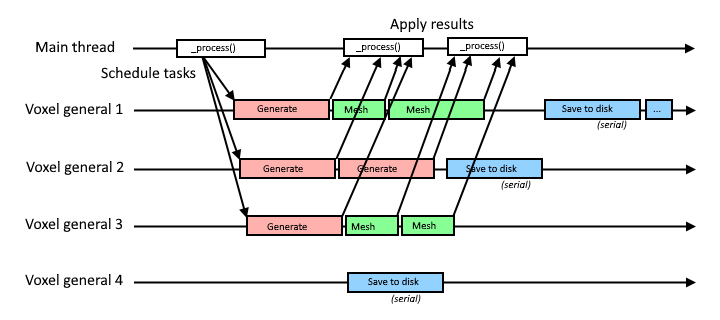
There is one pool of threads. This pool can be given many tasks and distributes them to all its threads. So the more threads are available, the quicker large amounts of tasks get done. Tasks are also sorted by priority, so for example updating a mesh near a player will run before generating a voxel block 300 meters away.
Some tasks are scheduled in a "serial" group, which means only one of them will run at a time (although any thread can run them). This is to avoid clogging up all the threads with waiting tasks if they all lock a shared resource. This is used for I/O such as loading and saving to disk.
The thread pool is in VoxelEngine.
Note: this task system does not account for "frames". Tasks can run at any time for less or more than one frame of the main thread.
Code guidelines
Syntax
For the most part, use clang-format and follow most of Godot conventions.
- Class and struct names
PascalCase - Constants, enums and macros
CAPSLOCK_CASE - Other names
snake_case - Globals prefixed with
g_ - Statics prefixed with
s_ - Thread-locals prefixed with
tls_ - Parameters prefixed with
p_in case of ambiguity, recommended for large functions. - Private and protected fields prefixed with
_ - Generally functions shouldn't start with
_, except for API reasons or another special rule. - Signal handler functions are prefixed with
on_and should preferably not be called manually - Enums preferably prefixed by their name. Example:
enum Type { TYPE_ONE, TYPE_TWO }. Mandatory for enums exposed to Godot. - Open braces at the end of line, close them next line
- Never omit braces
- Space between binary operators and control flow:
if (a + b == 42) - Indent with tabs
- Private wrapper functions can be used to adapt to the Godot script API and are prefixed with
_b_. - Use Clang-format to automate most of these rules (there should be a file included at the root of the C++ project)
- Prefer comments with
//only - Some virtual functions from wrapper classes are prefixed with
_zn_to encapsulate signature differences when compiling as a module or as a GDExtension.
File structure
- Use
.hfor headers and.cppfor implementation files. - File names use
snake_case. - Constructors and destructors go on top
- Public API goes on top, private stuff goes below
- Bindings go at the bottom.
- Avoid long lines. Preferred maximum line length is 120 characters. Don't fit too many operations on the same line, use locals.
- Defining types or functions in
.cppmay be better for compilation times than in header if they are internal. - When a line is too long to fit a function signature, function call or list, write elements in column.
C++ features
- Don't use
autounless the type is impossible to express or a long template (like STL ones). IDEs aren't granted (Github reviews and diffs) - Moderate use of lambdas and functors are fine. Not
std::function. - Lambda captures should be defined explicitely (try to reduce usage of
[=]or[&]) - STL is ok if it measurably performs better than Godot alternatives.
- Initialize variables next to declaration
- Avoid using macros to define logic or constants. Prefer
static const,constexprandinlinefunctions. - Prefer adding
constto variables that won't change after being initialized - Don't exploit booleanization when an explicit alternative exists. Example: use
if (a == nullptr)instead ofif (!a) - If possible, avoid plain arrays like
int a[42]. Debuggers don't catch overruns on them. Prefer using wrappers such asstd::array,FixedArrayandSpan. - Use
uint32_t,uint16_t,uint8_tin case integer size matters. - If possible, use forward declarations in headers instead of including files
#includewhat you use, don't assume a header transitively includes things. This has been broadly ignored for a while, but new code should attempt to follow it.util/godotmicro-headers are an exception.- Don't do
using namespacein headers (Except withgodot::, but that's only to help supporting GDExtension using the same codebase, since Godot core does not have this namespace). mutablemust ONLY be used for thread synchronization primitives. Do not use it with "cache data" to make gettersconst, as it can be misleading in a multi-threaded context.- Use
ZN_NEWandZN_DELETEinstead ofnewanddeleteon types that don't derive from GodotObject. This is intented for code that may be independent from Godot, yet be tracked in Godot's default allocator when used. - Use
ZN_ALLOCandZN_FREEinstead ofmallocandfree. This is intented for code that may be independent from Godot, yet be tracked in Godot's default allocator when used. - When using standard library containers, prefer aliases from
util/containers/such asStdVector. These are using Godot's allocation functions so memory will be tracked.
Error handling
- Exceptions are not used.
- Check invariants, fail early. Use
CRASH_CONDorZN_ASSERTin debug mode to make sure states are as expected even if they don't cause immediate harm. - Crashes aren't nice to users, so in user-facing code (scripting) use
ERR_FAIL_CONDorZN_ASSERT_RETURNmacros for code that can recover from error, or to prevent hitting internal assertions - Macros prefixed with
ZN_are Godot-agnostic and may be used for portability in areas that don't depend on Godot too much.
Performance
In performance-critical areas which run a lot:
- Avoid allocations. Re-use memory with memory pools,
ObjectPool, fixed-size arrays or usestd::vectorcapacity. - Avoid
virtual,Ref<T>,String - Don't resize
PoolVectorsorVector<T>, or do it in one go if needed - Careful about what is thread-safe and what isn't. Some major areas of this module work within threads.
- Reduce mutex locking to a minimum, and avoid locking for long periods.
- Use data structures that are fit to the most frequent use over time (will often be either array, vector or hash map).
- Consider tracking debug stats if their impact is negligible. It helps users to monitor how well the module performs even in release builds.
- Profile your code, in release mode. This module is Tracy-friendly, see
util/profiling.hpp. - Care about alignment when making data structures. For exmaple, pack fields smaller than 4 bytes so they use space better
Godot API
- In areas where performance matters, use the most direct APIs for the job. Especially, don't use nodes. See
RenderingServerandPhysicsServer. - Only expose a function to the script API if it is safe to use and guaranteed to remain present for a while
- Use
memnewandmemdeleteinstead ofnewanddeleteon types derived from GodotObject - Don't leave random prints. For verbose mode you may also use
ZN_PRINT_VERBOSE()instead ofprint_verbose(). - Use
intas argument for functions exposed to scripts if they don't need to exceed 2^31, even if they are never negative, so errors are clearer if the user makes a mistake - If possible, keep Godot usage to a minimum, to make the code more portable, and sometimes faster for GDExtension builds. Some areas use custom equivalents defined in
util/.
Compiling as a module or an extension is both supported, so it involves some restrictions:
- Don't include Godot headers directly. Use headers from
util/godot. - Only use APIs that are available to GDExtensions (or the script API). If they exist in both but are different, use wrappers defined in
util/godot.
Namespaces
The intented namespaces are zylann:: as main, and zylann::voxel:: for voxel-related stuff. There may be others for different parts of the module.
Registered classes are also namespaced to prevent conflicts. Namespaces do not appear in Godot's ClassDB, so voxel-related classes are also prefixed Voxel. Other more generic classes are prefixed ZN_.
If a registered class needs the same name as an internal one, it can be placed into a ::godot sub-namespace. On the other hand, internal classes can also be suffixed Internal.
Version control
- Prefer separating commits with logic changes and commits with code formatting
- When doing a PR, prefer to squash WIP commits
Debugging
Command line arguments
When you start Godot, by default it starts the project manager. When you choose a project from there, it will relaunch itself, but that breaks the debugger's connection. So it is recommended to use command line arguments to directly start Godot in the project and mode you want.
First, make sure Godot is launched within the working directory of your project.
- To debug the game, launch Godot with no argument, and it will start from the main scene.
- To debug a specific scene of the project, launch Godot with the relative path to the scene as command line argument
- To debug the editor, add the
-eargument.
Example of options setup in in VSCode launch.json on Windows:
{
    "version": "0.2.0",
    "configurations": [
        {
            "name": "(Windows) Launch",
            "type": "cppvsdbg", // For MSVC
            //"type": "cppdbg", // For GDB
            "request": "launch",
            "program": "${workspaceFolder}/bin/godot.windows.editor.dev.x86_64.exe", // Dev build (old target=debug)
            //"program": "${workspaceFolder}/bin/godot.windows.editor.x86_64.exe", // Non-dev build (old target=release_debug)
            "args": [
                "-v", // Verbose output

                //"-e", // Editor mode

                //"--debug-collisions",

                // Run a specific scene
                //"local_tests/sqlite/test_sqlite.tscn",
                //"local_tests/texturing/test_textured_terrain.tscn"
                //"local_tests/texturing/test_texturing.tscn"
            ],
            "stopAtEntry": false,
            "cwd": "D:/PROJETS/INFO/GODOT/Games/SolarSystem/Project",
            "environment": [],
            "visualizerFile": "${workspaceFolder}/modules/voxel/misc/voxel.natvis"
        }
    ]
}
Breakpoint on error
It is recommended to use a debugger to have better information when errors or crashes occur. It may be useful to open core/error/error_macros.cpp (in Godot 4.x) and leave a breakpoint in _err_print_error, so that every time an error occurs, the debugger will break in there, providing you with the live call stack and variable states to inspect.
If you debug the editor, Godot tends to print a lot more errors for things that aren't critical, such as making temporary mistakes in the script editor, or trying to index a resource file in the explorer dock and failing for whatever reason. In this case you may either need clean dedicated test projects, or place breakpoints after launch.
Debug print
Godot:
#include <core/string/print_string.h>

print_line(String("Hello {0}, my age is {1}").format(varray(name, age)));
Non-Godot:
#include "util/io/log.h"
#include "util/string/format.h"

println(format("Hello {}, my age is {}", name, age));
Pretty printing
Godot and the voxel module both use their own container types, in addition to STL's ones. Debuggers often aren't able to inspect them. For example, Godot's Vector<T> class is similar to std::vector<T> but debuggers are unable to let you inspect what's in them.
To fix this, it is usually possible to provide your debugger a file listing special patterns to inspect these types in a more user-friendly way.
In VSCode, the cpp-tools extension supports Natvis files. Godot comes with such a file in platform/windows/godot.natvis. To get pretty printing for Godot types, in your launch.json file, add the following line:
"visualizerFile": "${workspaceFolder}/platform/windows/godot.natvis"
Unfortunately, only one file can be provided at the moment. An issue is open to request support for multiple files. That means if you also want pretty-printing for structures of the voxel module, you have to replace the natvis path with the following:
"visualizerFile": "${workspaceFolder}/modules/voxel/misc/voxel.natvis"
Profile with Tracy
This module contains macros to profile specific code sections. By default, these macros expand to Tracy Profiler zones. It allows to check how long code takes to run, and displays it in a timeline.
It was tested with Tracy 0.10, but later versions probably work too.
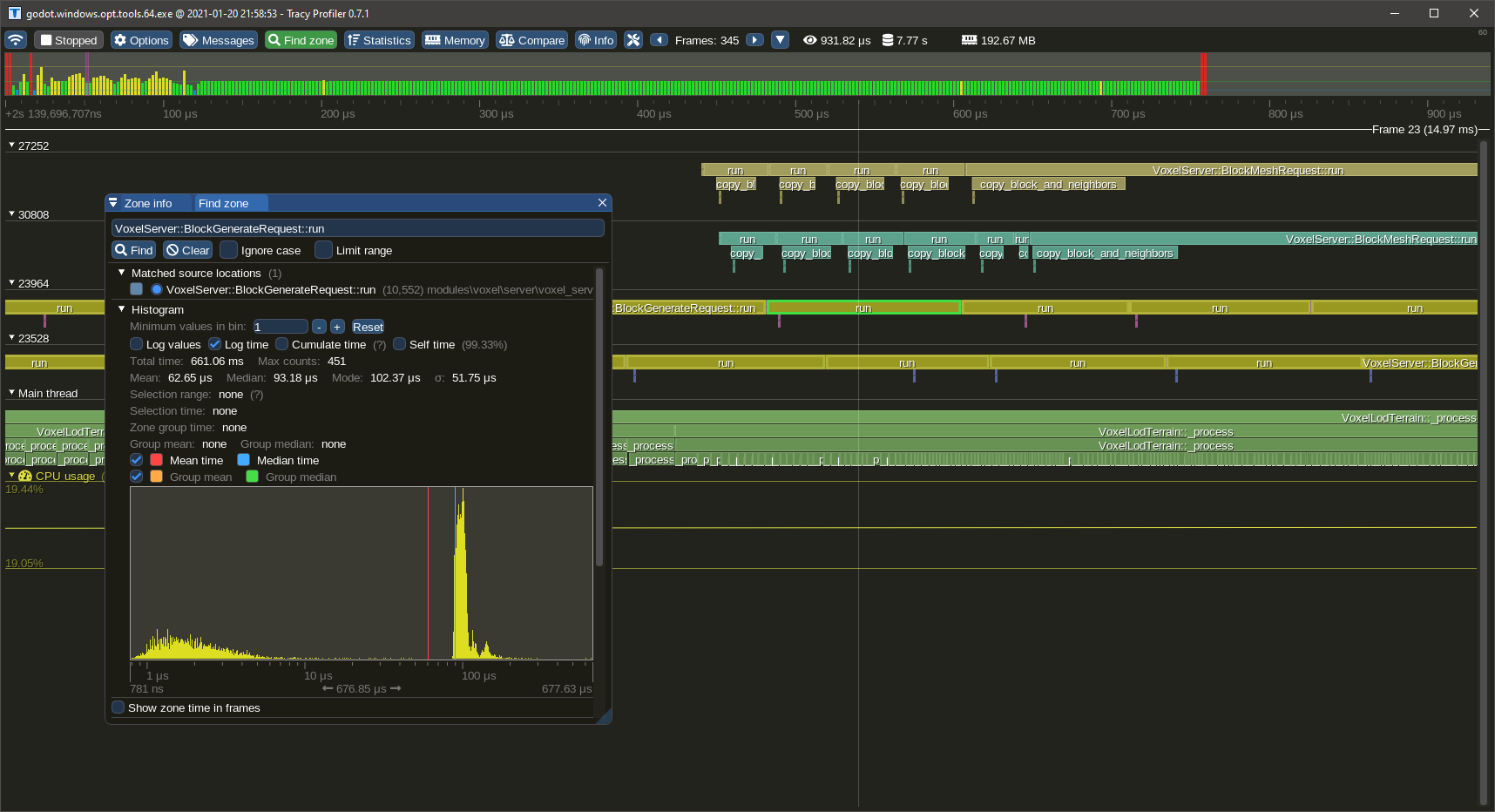
Alternative profilers are also mentionned in the Godot docs. They profile everything and appear to be based on CPU sampling, while Tracy is an instrumenting profiler providing specific, live results on a timeline.
A typical workflow is to launch Tracy, start a connection, and then launch the game, which will establish a connection and record all events. Tracy can also be launched and connect after the game, in which case the data will accumulate inside the game.
Tracy-enabled builds
Note
These builds are experimental and will be reworked when Godot 4.6 is released with better Tracy support.
Builds of Godot with the module and Tracy integrated are available for Windows, on Github Actions. The file to download will have tracy in the name. Note, you will need a Github account to download it.
Warning
These builds start recording data immediately on startup. That includes the project manager and the editor. It can use a lot of memory (2 Gb just starting the editor). If you only want to profile the game, use the command line to directly launch that build of Godot with your game, or just drop the executable at the root of your project and launch it.
Outside of this case, you have to compile yourself to get Tracy support.
Once you are done profiling, don't forget to switch back to a normal build, otherwise profiling data will accumulate in memory without being retrieved.
Adding Tracy
In Godot 4.6 and later
Since Godot 4.6, Tracy is natively supported as an option of Godot's build system. You need to recompile the engine with additional SCons options: profiler=tracy profiler_path=<path to the public folder in Tracy>.
in Godot 4.5 and older
To add Tracy support, clone it under thirdparty/tracy (Godot's thirdparty folder, not the module).
Then compile the engine by including tracy=yes in the SCons command line.
This way so internally some of the work is actually done in the voxel module's build script.
Note
Tracy has a concept of frame mark, which is usually provided by the application, to tell the profiler when each frame begins. Godot doesn't have a hook for us to insert that call at the right time, so the frame mark was hacked into VoxelEngine process function. This allows to see frames of the main thread in the timeline, but they might be offset from their real beginning.
In GDExtension build
Not supported at the moment, but with a few tweaks of the build system it could be made to work.
How to add profiler scopes
If existing instrumentation isn't enough, you can add more by editing the code.
A profiling scope bounds a section of code. It takes the time before, the time after, and records it into a timeline. In C++ we can use RAII to automatically close a section when we exit a function or block, so usually a single macro is needed at the beginning of the profiled zone. The module already have plenty of them, but you can add yours if you need more insight.
The macros are profiler-agnostic, so if you want to use another profiler it is possible to change them.
You need to include util/profiling.h to access the macros.
To profile a whole function:
void some_function() {
    ZN_PROFILE_SCOPE();
    //...
}
To profile part of a function:
void some_function() {
    // Some code...

    // Could be an `if`, `for`, `while`, or a simple block as here
    {
        ZN_PROFILE_SCOPE();
        // Profiled code...
    }

    //...
}
By default scopes take the name of the function, or file and a line number, but you can give a name explicitely using ZN_PROFILE_SCOPE_NAMED("Hello"). Only compile-time strings are supported, don't use String or std::string.
It is also possible to plot numeric values so they are displayed in the timeline too:
void process_every_frame() {
    // Some code...

    ZN_PROFILE_PLOT("Bunnies", bunnies.size());
}
Compilation flags and macros
The module has a few preprocessor macros that can be defined in order to turn off parts of the code getting compiled. Some can be specified through SCons command line parameters.
Features
By default, features are all enabled, unless specified otherwise. To turn off a feature, specify flag_name=no in the SCons command line.
| SCons flag | C++ Macro | Description |
|---|---|---|
voxel_fast_noise_2 |
VOXEL_ENABLE_FAST_NOISE_2 |
Integrated support for SIMD CPU noise using FastNoise2. It is optional in case it causes problem on some compilers or platforms. Not available in GDExtension builds. |
voxel_tests |
VOXEL_TESTS |
Unit tests. They will run on startup if the --run_voxel_tests command line argument is passed, or if VoxelEngine.run_tests() is called. |
voxel_smooth_meshing |
VOXEL_ENABLE_SMOOTH_MESHING |
Smooth voxel meshers and some associated features. Turning this off also turns off modifiers, which depend on it. |
voxel_modifiers |
VOXEL_ENABLE_MODIFIERS |
VoxelModifier experimental feature support. |
voxel_sqlite |
VOXEL_ENABLE_SQLITE |
VoxelStreamSQLite, which also bundles the SQLite3 library. |
voxel_instancer |
VOXEL_ENABLE_INSTANCER |
VoxelInstancer support |
voxel_gpu |
VOXEL_ENABLE_GPU |
GPU compute support (the GPU is still used when this option is off, just not using compute shaders) |
voxel_basic_generators |
VOXEL_ENABLE_BASIC_GENERATORS |
Includes basic generators that could be used for testing. |
voxel_mesh_sdf |
VOXEL_ENABLE_MESH_SDF |
Support for voxelized meshes with VoxelMeshSDF. Turning this off also turns off modifiers, which depend on it. |
voxel_vox |
VOXEL_ENABLE_VOX |
Ability to load .vox MagicaVoxel files. |
Warning
Testing combinations of these flags over time is very time-consuming, and most people don't compile custom builds to turn them off. So it is possible that the project doesn't compile with a specific subset. You may signal it and/or open a PR if you want to fix it.
Other macros
MESHOPTIMIZER_ZYLANN_WRAP_LIBRARY_IN_NAMESPACE: this one must be defined to prevent conflict with Godot's own version of MeshOptimizer. See https://github.com/zeux/meshoptimizer/issues/311#issuecomment-955750624ZN_GODOT: must be defined when compiling this project as a module.ZN_GODOT_EXTENSION: must be defined when compiling this project as a GDExtension.
Shaders
The module contains shaders for some of its features, mainly compute shaders. They are found under the shaders/dev/ folder.
shaders/dev contains a Godot project. The purpose of this project is mainly to quickly test if shaders compile properly, and eventually test them with simple scenes and GDScript code.
There are several ways shaders are written:
- Plain: regular shaders, which will be used as-is.
- Templates: these contain
<PLACEHOLDER>sections, which the engine will replace with generated code. Code inside those sections will be replaced and is only present to make the shader compile in the test project. - Snippets: these contain
<SNIPPET>sections, which will be inserted into templates or other generated code. Code outside those sections will not be used and is only present to make the shader compile in the test project.
Shipping external files when compiling as a module is inconvenient, so instead they are embedded in C++ directly, similarly to how Godot does. A script can be executed to update those generated files. You must open a command line inside the shaders/ folder and run python text2cpp.py.
Currently, C++ code generating shaders is intertwined with the contents of those shaders. For example, C++ strings in code generation can contain variable names found in GLSL files, so you should have both open to understand the context.
Using the module from another module
Writing a custom C++ module directly in Godot is the easiest way to access features of Godot and the voxel engine directly, which can be better for performance and more stable than a GDExtension. You can do this too if you want to create a custom generator, mesher, stream, or just use components of the module, without having to modify the module directly.
You can include files from the voxel module by using modules/voxel/ in your includes:
#include <modules/voxel/storage/voxel_buffer.h>
You will also need to define preprocessor macros in your SCsub file:
env_yourmodule.Append(CPPDEFINES = [
    'ZN_GODOT'
])
TODO: since the implementation of compiling-out features, you will have a lot more of preprocessor symbols to define, since you may want to #include headers of the voxel engine that expect them to be defined or not. There is currently no helper to do this, so you have to add them manually in your CPPDEFINES array. See the list of macros.
Note
While API docs cover functions you will also find in C++, internals sometimes only have comments. They are not documented outside, and there is no plan to do so. It is recommended to inspect the headers to find what is exposed, what namespaces to use etc. You may also read existing code in .cpp files to see how some things are used.